

Download FoxClocks – World‑Time Extension for Firefox, Thunderbird & Sunbird
Overview
FoxClocks is a lightweight, free extension that brings global time zones directly into the status bar of Firefox, Thunderbird, and Sunbird. Whether you’re a frequent traveler, a remote‑team manager, or simply someone who needs to keep tabs on colleagues across continents, FoxClocks eliminates the need to open a separate world‑clock website or app. The extension displays multiple clocks at a glance, lets you colour‑code zones for quick visual cues, and automatically updates to reflect daylight‑saving changes.
While its feature set is intentionally focused, FoxClocks delivers exactly what it promises: a reliable, secure, and unobtrusive way to view world times without leaving your browser or email client. The user interface blends seamlessly with the native toolbar, and because it’s built on standard web‑extension technology, you can trust that it respects your privacy and runs efficiently on Windows, macOS, and Linux platforms. In short, FoxClocks is the go‑to tool for anyone who regularly coordinates calls, meetings, or deadlines across time zones.
Key Features & Customisation Options
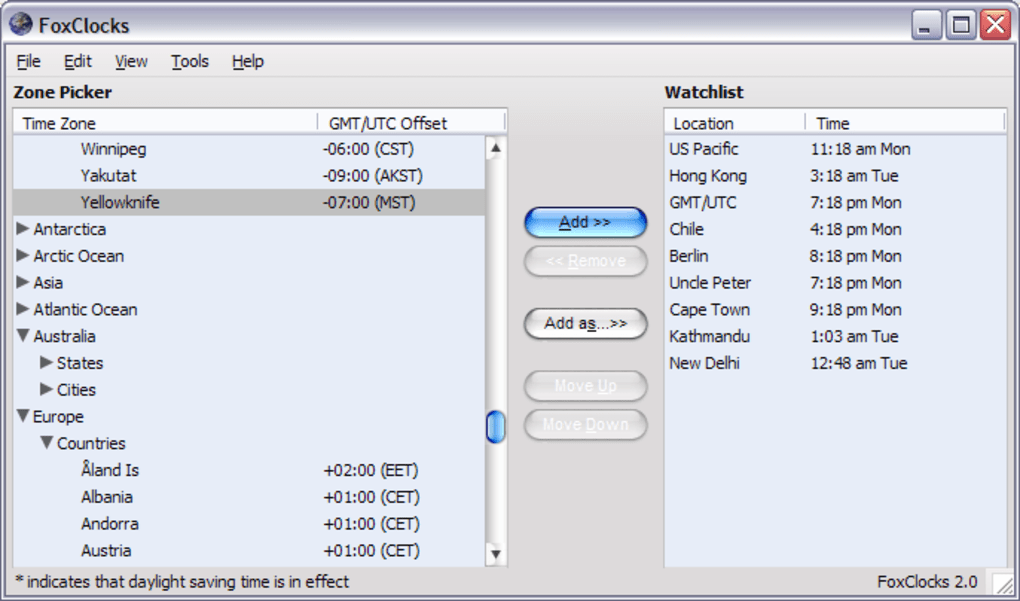
- Multiple clock display – add as many time zones as you need, from major cities to remote regions.
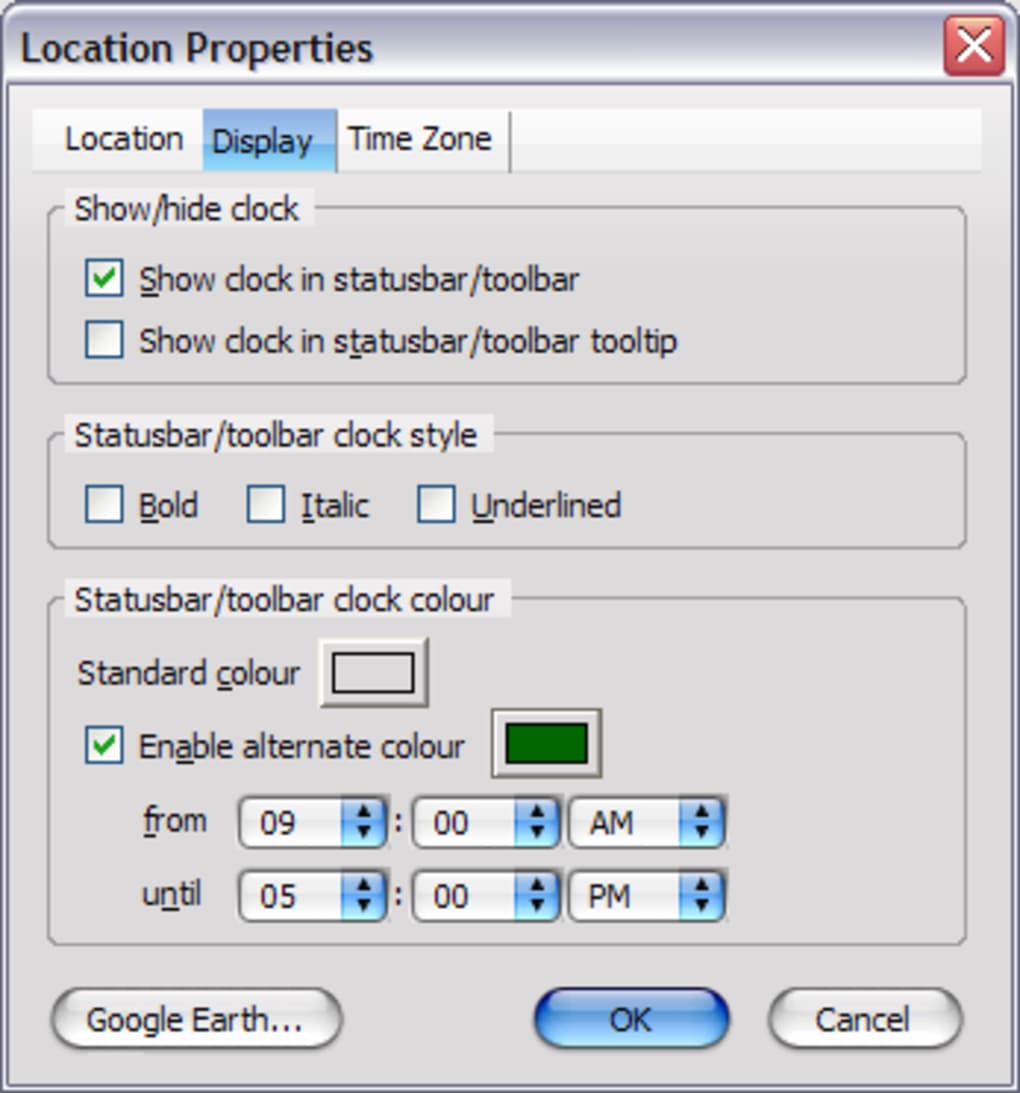
- Colour‑coded alerts – set a clock to change colour during specific hours (e.g., turn green when it’s business hours in Tokyo).
- Country, region, or city browsing – quickly locate the desired zone using an intuitive selector.
- Automatic updates – clocks refresh automatically to stay in sync with your system clock and daylight‑saving changes.
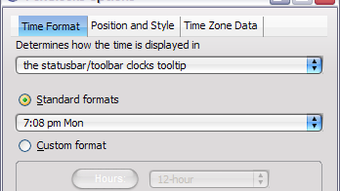
- Custom time formats – choose 12‑hour or 24‑hour display, include seconds, or show the date alongside the time.
- Toolbar flexibility – place clocks in the status bar, navigation bar, or any custom toolbar supported by Firefox, Thunderbird, or Sunbird.
- Lightweight footprint – the extension adds only a few kilobytes to your browser, keeping performance impact to a minimum.
- Free and open source – no hidden fees, no subscription, and the source code is available for community review.
Although FoxClocks purposefully avoids feature bloat, the handful of customisation options it does provide are thoughtfully designed. The colour‑coding system, for example, lets you set a “working window” for each zone, turning a clock green when it’s a good time to call and red when it’s outside normal business hours. This visual cue can dramatically reduce the chance of accidentally waking a colleague in a different time zone. Moreover, the extension respects your operating system’s regional settings, meaning the date and time format will automatically match your locale unless you explicitly change it. For power users, the simple JSON‑based configuration file can be edited manually to fine‑tune clock order or add custom labels, though most people will never need to touch it.
Installation, Setup, and Daily Use
Getting FoxClocks up and running is straightforward. Begin by visiting the official Mozilla Add‑ons page or the FoxClocks website and clicking the “Add to Firefox” button. The browser will prompt you to confirm the installation; once approved, FoxClocks will appear instantly in the status bar. For Thunderbird users, the process is identical—simply install the add‑on via the Add‑on Manager, and the clocks will be added to the lower‑right corner of the client window.
After installation, open the FoxClocks preferences panel by right‑clicking the clock area and selecting “Options.” Here you can add new zones by clicking “Add Clock,” then searching by city name or browsing the hierarchical list of countries. To enable colour alerts, tick the “Enable colour‑coding” checkbox and define start and end times for each zone; you can also choose the colours that best fit your workflow. Once you’ve configured your list, click “Save” and the clocks will instantly reflect the changes.
Daily use is as simple as glancing at the toolbar. The clocks update in real time, and if you have colour alerts enabled, the background of each clock will switch automatically when the defined window opens or closes. If you need to adjust a clock—perhaps because you’ve added a new project in a different region—just right‑click the clock again and select “Edit.” All changes are saved locally, and because the extension relies on your system clock, there’s no need for manual synchronisation. For users who prefer a clean interface, you can hide the status‑bar clocks at any time and re‑enable them later via the same right‑click menu.
Updates are handled through the standard Mozilla add‑on update mechanism. When a new version is released, Firefox or Thunderbird will automatically download and install it, ensuring you always have the latest bug fixes and compatibility improvements without any extra effort on your part.
Compatibility, System Requirements & Frequently Asked Questions
FoxClocks is compatible with the current and recent versions of Firefox (including ESR), Thunderbird, and the legacy Sunbird calendar. It runs on Windows 7 and later, macOS 10.12 (Sierra) and later, as well as most Linux distributions that support the Mozilla platform. Because the extension is built on standard web‑extension APIs, it works equally well on 64‑bit and 32‑bit systems, and it respects the host application’s language settings, automatically translating city names where translations are available.
Minimum system requirements are modest: a modern processor (Intel i3 or equivalent), at least 512 MB of RAM, and a stable internet connection for the initial download. No additional software libraries are required, and the extension does not collect personal data, making it suitable for corporate environments with strict privacy policies.
Frequently Asked Questions
Is FoxClocks completely free?
Yes, FoxClocks is released under a free‑software license. There are no hidden fees, subscriptions, or premium tiers.
Can I use FoxClocks on mobile browsers?
FoxClocks is designed for desktop versions of Firefox, Thunderbird, and Sunbird. Mobile Firefox does not support this add‑on at present.
How does FoxClocks handle daylight‑saving changes?
The extension relies on the operating system’s time‑zone database. When your OS updates its DST rules, FoxClocks automatically reflects the new offsets without any user intervention.
Is it possible to export my clock list?
Yes. In the Options window there is an “Export/Import” section that lets you save your configuration to a JSON file and reload it later on another machine.
Does FoxClocks affect browser performance?
Because the extension only updates a few UI elements once per second, the performance impact is negligible on modern hardware. Users have reported less than a 1 % increase in CPU usage.
Pros & Cons, Final Thoughts, and Call to Action
Pros
- Free, open‑source, and no hidden costs.
- Instant visual access to multiple world times directly in the toolbar.
- Colour‑coding provides quick at‑a‑glance status for each zone.
- Automatic updates keep clocks accurate without manual effort.
- Lightweight footprint preserves browser speed and system resources.
- Works on Windows, macOS, and Linux across Firefox and Thunderbird.
Cons
- Lacks advanced scheduling features (e.g., recurring meeting reminders).
- No native support for mobile browsers.
- Customization options are limited to colour and format; no custom icons.
Overall, FoxClocks delivers exactly what its target audience needs: a reliable, unobtrusive way to keep track of global times while you work. Its minimalistic design means there’s no learning curve, and the colour‑coding system can save you from costly mis‑timed calls. While power users might wish for deeper integration with calendar apps, the extension’s core functionality remains rock‑solid and dependable. If you regularly coordinate with teams in different time zones, or simply want to know what time it is in Tokyo while you sip coffee in New York, FoxClocks is the perfect companion.
Ready to streamline your worldwide communications? Download FoxClocks now from the official Mozilla Add‑ons store, add it to Firefox or Thunderbird, and start seeing the world’s clocks at a glance. Experience the convenience of automatic updates, colour alerts, and a clutter‑free interface—completely free and secure.







